
Technology is everywhere in today’s digital world, so it’s important for students to learn the basics of computers for school, work, and everyday life. Knowing the basics of computers can make everything easier, whether you want to work from home, use social media, study online, or run a business. In this blog post is written computer basic knowledge for beginners
A lot of people who are just starting to learn computers get confused. They don’t know how to use software, browse the internet, or protect their data from viruses. They also don’t know how a computer works or what parts it has. This full guide is easy to understand and use because it covers all the basic computer knowledge that beginners need to know.
People made computers so they could do math and process information faster than people could. They can do millions of tasks per second now, which speeds up work and makes it more accurate. Learning the basics of computers for beginners gives you confidence and opens up more job opportunities around the world.
Table of Contents
What Is Computer ?
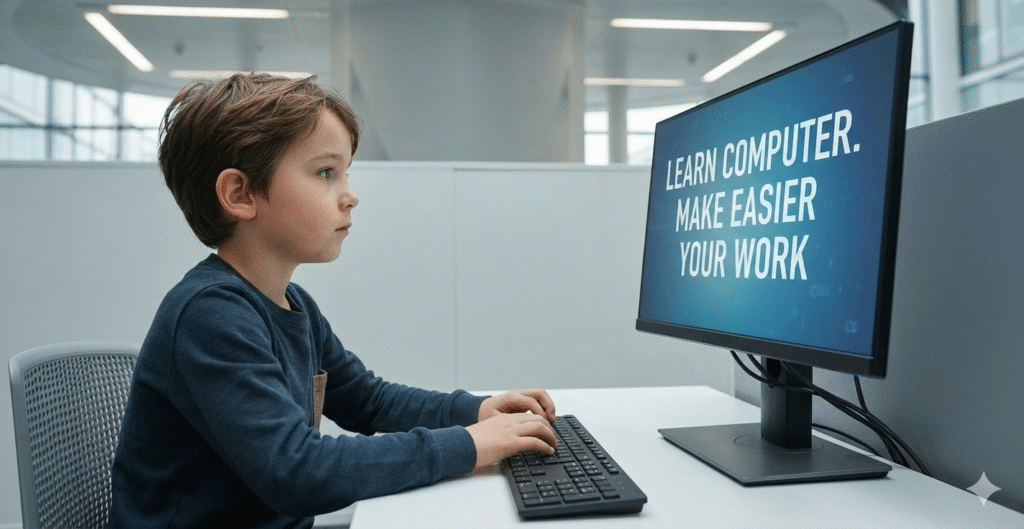
A computer is an electronic device that accepts input, processes data, produces output, and stores information for future use. It works based on the input → processing → output → storage cycle.
For example:
-You type using the keyboard (input)
-The CPU processes it (processing)
-The text appears on the screen (output)
-You save the file on the hard disk (storage)
This simple process is the foundation of computer basic knowledge for beginners, and understanding it helps learners use devices confidently.
Type of computer
- Desktop Computers
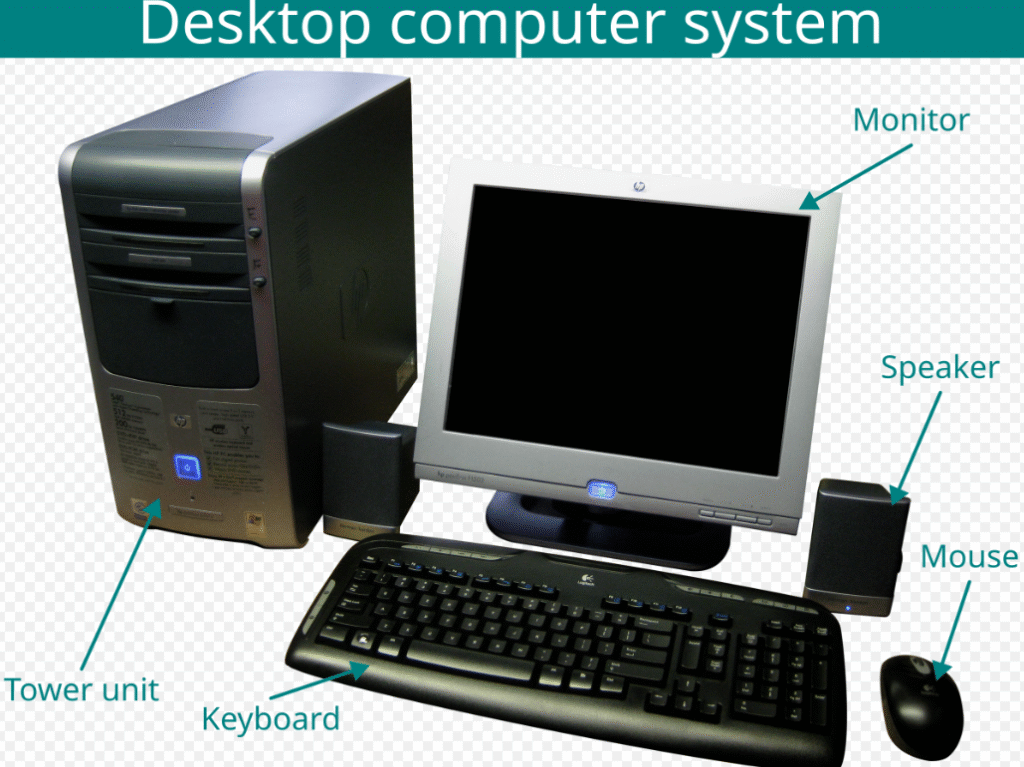
A desktop computer is designed to stay in one place, usually at a desk. It has separate parts like the monitor, CPU, keyboard, and mouse. It is powerful and used for office work, gaming, and home tasks.
Example: Dell Inspiron Desktop, HP Pavilion Desktop
- Laptop Computers
A laptop is a portable personal computer with a built-in screen, keyboard, and battery. You can use it anywhere, such as at home, school, or while traveling.
Example: Lenovo ThinkPad, Apple MacBook, HP EliteBook
- Tablets
A tablet is a portable touchscreen device larger than a smartphone but smaller than a laptop. It’s used for browsing, reading e-books, gaming, and watching movies.
Example: Apple iPad, Samsung Galaxy Tab
- Smartphones
A smartphone is a handheld device that combines mobile phone features with computer functions. It can run apps, browse the internet, take photos, and connect to social media.
Example: iPhone, Samsung Galaxy, Google Pixel
- Servers
A server is a powerful computer that stores, shares, and manages data for multiple users or devices over a network. It provides services like websites, cloud storage, and email.
Example: Web server hosting Facebook or Google services, Dell PowerEdge server
- Mainframe Computers
A mainframe is a large and powerful computer used by big organizations to handle huge amounts of data and process many transactions at once.
Example: IBM Z series mainframe used by banks for ATM transactions
- Supercomputers
A supercomputer is the fastest and most powerful type of computer used for solving very complex scientific problems and large data processing.
Example: Summit and Frontier supercomputers used for climate research, AI, and space simulations
Computer Hardware Component
- 1. The CPU (Central Processing Unit)
This is the computer’s main processor and brain.
Function: follows instructions, runs operations, and does math.
Type: Device for processing
- 2. RAM (Random Access Memory)
Description: A temporary working memory that keeps track of open programs and files.
Function: Lets you quickly access running apps and do more than one thing at once.
Type: primary memory (volatile)
- 3. Storage on HDD or SSD
Description: A permanent storage device that holds the operating system, software, and user files.
Function: Keeps data for a long time and gets it back when needed.
Type: Secondary storage that doesn’t change
- 4. Motherboard
Description: The main circuit board that connects all the parts.
Function: It lets the CPU, RAM, GPU, and other hardware talk to each other.
Type: Main system board or communication part
- 5. The Graphics Card (GPU)
Description: A processor made to handle graphics and display output.
Function: It displays images, videos, and animations, and it can also handle gaming and AI tasks.
Type: Output component or processing device
- 6. Power Supply (PSU)
Description: Gives power to the parts of a computer.
Function: Changes AC power into DC power and sends it safely to parts.
Type: Component of power
- 7. Mouse and keyboard
Input devices that let you control and use the computer.
What it does:
Keyboard: type commands and text
Mouse: move the cursor and choose things
Type: Input devices
- 8. Watch
Display device that shows the computer’s visual output.
Function: Shows text, pictures, videos, and a graphical user interface.
Type: device for output
Difference Between Hardware and Software
Many students get confused between hardware and software when learning computer basic knowledge for beginners. Hardware is the physical structure, while software is the program that runs inside the hardware.
Types of software include:
- System Software
- Operating System (Windows, macOS, Linux)
- Controls hardware and system processes
- Application Software
- Browsers, games, document editors, media players
Without software, hardware cannot function, just like a body needs commands from the brain.
Input and Output Devices
🔹 Devices for input
Users can send data, commands, or instructions to the computer through input devices. You can use these devices to control operations, type text, or take pictures or record sound.
1. Keyboard
You can type letters, numbers, and commands into a computer with a keyboard. This is the most common way to type.
2. Mouse
You can move the pointer on the screen with a mouse. It lets people click, drag, and choose things or commands.
3. Scanner
A scanner changes physical images or documents into digital form so that they can be saved or changed on a computer.
4. Microphone
A microphone picks up sound and sends audio signals to the computer so that it can record, respond to voice commands, or talk to someone.
Output Devices
Output devices show or make the results of computer work. They let the computer send information back to the user.
1. Monitor
A monitor shows the computer’s visual output, which can be text, pictures, graphics, or videos.
2. Printer
A printer makes a physical copy of digital files like photos and documents.
3. Speakers
Speakers make sound come out of the computer, like music, system alerts, and voice audio.
🔀 Devices for Input and Output
Some devices can send data to the computer and show the user the results at the same time.
Touch screen, for example
A touchscreen can take input by touch and show output on the screen. Instead of using a mouse or keyboard, it lets people interact directly with the screen.
Operating System : Heart of Computer
The operating system (OS) is the main program that controls and manages everything that the computer does. It lets software and hardware work together. A user can’t run programs, use files, or do basic tasks without an OS.
Some common operating systems for beginners are:
An easy-to-use operating system that most personal computers use. It works with a lot of different software, which makes it great for beginners.
• macOS
Apple made this operating system for Mac computers. Known for being fast, safe, and having professional software support.
• Linux versions
Operating systems that are free and open source include Ubuntu, Fedora, and Mint. People often use Linux for programming and servers because it can be changed in many ways.
Most people who are new to computers start with Windows because it has a lot of programs, learning materials, and study materials that are easy to find. For new learners, it’s important to know how to change OS settings, files, and system preferences.
Basic Computer Skills Every Beginner Must Learn
If beginners learn some basic computer skills, they can use the computer with confidence and efficiency. You need these skills to study, work in an office, and do things like check your email and use the internet every day.
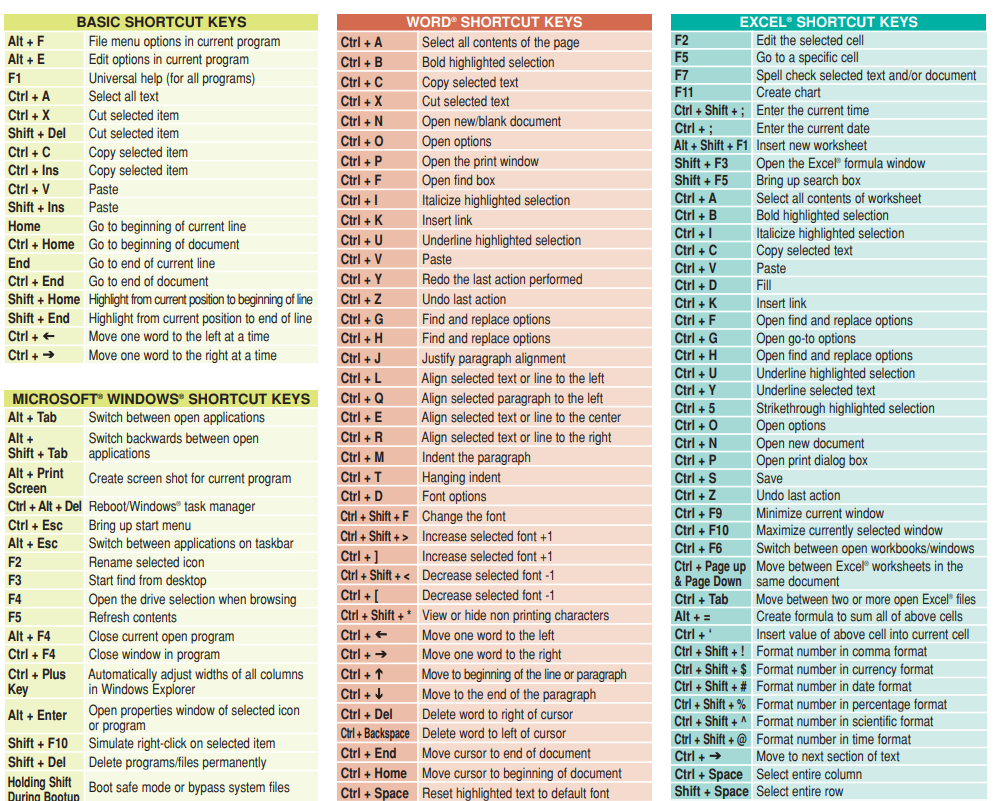
1. Shortcuts and typing on the keyboard
People who are good at typing can type quickly and accurately. When you use keyboard shortcuts like Ctrl+C (copy) and Ctrl+S (save), you don’t have to use the mouse as much, which speeds up your work.
2. Moving, copying, renaming, and deleting files
These easy file management tasks help you keep your folders and documents in order. It’s easy to keep your storage neat and easy to get to when you can copy or move files, give them the right name, and delete things you don’t want.
3. Using search engines and the internet
People who know how to use the internet can find information there. You can quickly find correct information if you know how to use Google or another search engine.
4. Writing and replying to emails in a businesslike way
Email skills include being able to write emails, add attachments, and respond politely. When you apply for jobs, talk to teachers, and do your job at work, you should always be professional.
5. Keeping storage devices in good shape
If users know how to handle hard drives, USB drives, and SD cards, both inside and outside of their computers, they can safely save, move, and organize data.
6. Adding and removing apps
People who use computers should know how to safely install software and get rid of programs they no longer need. This helps the system work better and makes it easier to save things.
7. Using Microsoft Office (Word, Excel, and PowerPoint)
These office tools help you make documents, spreadsheets, and presentations. When you learn the basics, you can get more done at school, at work, and on your own projects.
8. Making copies
Backing up important files protects them from being lost due to viruses, system crashes, or accidental deletion. People often use cloud storage and external drives to make copies of their files.
Understanding Computer Storage and Memory
🔹 RAM (memory)
RAM, which stands for Random Access Memory, is what memory is short for.
It is temporary or volatile, which means that the data in RAM is lost when the computer is turned off.
What RAM does
Keeps programs and data that are currently in use active
Processes applications faster so they run faster
Improves computers’ speed and ability to do more than one thing at a time.
For instance:
When you open a program or web browser, it goes into RAM so the CPU can find it quickly.
🔸 Keeping
Storage is what we call devices that keep data for a long time or even forever.
Unlike RAM, data that is stored stays there even when the computer is turned off.
What storage is used for
Keeps the operating system, apps, and user files safe
Stores data for later use
Keeps data safe even when the power goes out.
📦 Different types of storage devices
A mechanical storage device that stores data on spinning disks.
Features
A lot of room for storage
Not as quick as an SSD
Less money
For
Keeping backups of documents, videos, software, and more.
2. SSD (Solid State Drive)
A new, faster storage device that uses flash memory chips to store data without having any moving parts.
What it has
Booting up and loading files faster
More reliable and uses less energy
More expensive than HDD
What it’s used for
Important files, software, and operating systems for performance.
3. USB Flash Drives
A flash memory-based portable storage device.
Features
Small and easy to carry around
Connect and play using the USB port
Good for sending files
Used for
Moving files, backups, and media from one computer to another.
4. Memory Cards
Flash memory that is small enough to fit in mobile devices.
Features
It’s light and easy to take off.
Found in cameras, tablets, and phones
Can give devices more storage space
Used for
Place to keep photos, videos, and apps.
5. Cloud storage services
You can use these web-based storage services over the internet.
Things to do
No need for a real device
Can access files from anywhere
Data stored on servers that are far away
For instance
Google Drive, Dropbox, and OneDrive
Used for
Backups, file sharing, and working from home.
Important Difference to Remember: Memory (RAM) and Storage
Always and never
Keeps files for a long time Holds data and programs that are running
Faster Slower
Keeps data even after shutting down When the computer shuts down, it loses data.
Basic Computer Networking
A Quick Look at Networking for Computers
Networking lets computers and other devices talk to and connect with each other. This lets people work together, share information, and get online. Learning about computers starts with learning the basics of networking.
1. Wi-Fi
Description: A wireless technology that lets devices connect to a network without wires.
Function: It lets you get online and talk to other devices that are nearby.
Type: Link to a wireless network
2. The internet
Description: A network that links computers all over the world.
Allows people to use cloud services, send emails, watch videos, and browse the web.
Type: WAN (Wide Area Network)
3. The router
A router is a piece of hardware that connects your home network to the internet.
Function: It sends the internet to a lot of devices and controls how data moves around on the network.
Type: hardware for connecting or networking
4. Modem
Description: A piece of equipment that turns digital data from a computer into signals that can be sent over the phone or cable.
Function: It links your office or home network to the internet.
Type: hardware that lets computers talk to each other or connect to the internet
5. Address on the web
Description: Every device on a network has its own unique ID.
Function: Lets devices on the internet or a local network find each other and talk to each other.
Type: System for sending messages to networks
6. Internet that is very fast
Description: A fast internet connection that sends data quickly over cable, phone lines, or fiber optics.
Function: Lets you get to the internet quickly for browsing, streaming, and downloading.
Type: The kind of internet connection
Newbies’ Networking Skills
How to get devices to connect to Wi-Fi
Getting to know IP addresses
How to set up and use modems and routers
Fixing common problems like “no internet connection” or slow speeds
How to Use the Internet browsing and Safely for Beginners
Learning how to use the internet is one of the most important things for people who are new to computers to do. It lets people get information, talk to each other, learn, and do things on the internet. But it’s just as important to browse the web safely and responsibly to avoid online threats.
1. How to Use Search Engines the Right Way
People can easily find information using search engines like Google, Bing, and Yahoo. Beginners should learn how to use keywords correctly and make sure that search results are correct.
2. Websites to Save
By bookmarking websites, users can keep track of the ones they visit often. This makes things work better and saves time.
3. How to download files safely
Before you download something, make sure the source is safe so you don’t get viruses or malware. Don’t click on links or pop-ups that look suspicious.
4. Not Visiting Websites That Look Fishy
Some websites might have bad information or scams on them. Beginners should learn how to tell which websites are safe by looking for HTTPS, secure symbols, or official URLs.
5. A good way to stay safe online is to use strong passwords.
Strong, unique passwords keep people who shouldn’t be able to get into your online accounts from doing so. Use letters, numbers, and symbols together.
6. Setting up two-factor authentication (2FA)
2FA makes your account even safer by requiring a code sent to your phone or email in addition to your password.
How important it is to protect your computer
People who are new to the internet are often the targets of phishing, malware, and online scams. It’s important to have safe browsing habits, strong passwords, and be careful when downloading to protect your personal information and devices.
In a nutshell
For people who are just starting out, being able to use the internet is an important computer skill.
Staying safe while using the internet makes your time online better.
Using search engines, bookmarking pages, downloading files safely, staying away from shady websites, and keeping your account safe are all very important things to do.
Tips for People Who Are New to Computers
Don’t worry if you’re new to computers. Every expert was once a beginner.
How to learn faster:
Do it every day
Watch tutorials and do the steps again.
Try out new programs on a regular basis.
Don’t rely on other people
Keep up with the latest trends in technology
For beginners, the key to building a strong foundation of computer knowledge is to be consistent.
End
This full guide gave beginners a lot of information about computers, such as how they work, what hardware and software they need, how to use input and output devices, how to stay safe online, basic skills, how to fix problems, and the benefits of using computers. When you learn the basics of computers, you can do anything you want in school, at work, in business, and in global communication.
Technology is always changing, and the first step to becoming digitally skilled is to learn the basics of computers. If you practice often and explore with confidence, you’ll soon go from being a beginner to an advanced computer user.
thc hard candy edibles provide long lasting flavor and effects
Pingback: How To Speed Up Slow Computer (Windows 10/11)