
Basic computer skills are no longer optional for office work in today’s digital workplace; they are necessary. Employers expect you to know the basics of computers if you want to work as an office assistant, an administrative assistant, a receptionist, or in any other corporate job. you must know Basic Computer Skills for Office Work
Computers are very important for office work because they are used for writing, talking, handling data, and getting things done. Basic computer skills are needed for even the simplest daily tasks, like sending emails, making documents, and organizing files. This guide is meant to help people who are new to computers, students, and people looking for work learn and master the most important computer skills they need for office work.
By the time you finish reading this article, you will know exactly what skills you need, how they are used in real offices, and how to get better at them to get better job opportunities.

Table of Contents
What basic computer skills do you need to work in an office?
The most important skills you need to do your daily office work on a computer are basic computer skills. All of these skills have to do with being professional, accurate, and efficient when you talk to people.
Here are a few of them: Basic Computer Skills for Office Work
Running a computer system
Using software at work
Putting files and folders in order
Sending emails
How to stay safe online
Caring for papers and data in the office
Operating a computer system
You need to know how to use a computer for daily tasks in order to run a computer system. You need to know how to turn the computer on and off correctly, use the mouse and keyboard, open programs, and do basic system tasks. This skill helps people finish their work quickly and keep common office tech problems from happening.
Using software at work
Using Microsoft Word, Excel, and PowerPoint are examples of office software. You can use these tools to write papers, set up spreadsheets, and give talks. You need to know how to format, enter data, and use basic formulas to do your office work right and professionally.
How to Handle Files and Folders
When you organize files and folders, you put digital information in a way that makes sense. This means making folders, naming files correctly, moving or deleting files you don’t need, and finding documents when you need them. Good file management keeps important office information safe and saves time.
Sending and getting emails
Email is a big part of working in an office. Sending and receiving messages, responding in a professional way, attaching files, and keeping your inbox folders in order are all part of it. Good email communication makes it easy to talk to coworkers, clients, and management without any problems.
How to use the Internet safely
Being responsible and keeping your personal and work information safe are two important parts of safe web browsing. This means not clicking on links that look suspicious, using strong passwords, and being aware of online threats like malware and phishing. Following safe internet rules can help protect your private information and the systems at work.
How to Deal with Office Files and Data
When you work with office data and documents, you make, change, store, and share files in a safe way. Employees are in charge of making sure that data is accurate, keeping it private, and following the rules for how to handle data at work. Good document management keeps things professional and makes sure that everything runs smoothly at work.
These are the skills that keep modern offices running smoothly.
Understanding Computer Basics (Foundation Skills)
Before learning office software, it’s important to understand basic computer operations.
Turning On and Using a Computer
Office employees should know how to:
- Start and Shut Down a Computer Properly
Starting and shutting down a computer properly is important to keep the system working smoothly. The computer should be turned on using the power button and shut down through the operating system’s shut down option instead of unplugging the power. This helps prevent data loss and system damage. - Use a Keyboard and Mouse Efficiently
Using the keyboard and mouse efficiently allows users to work faster and more accurately. The keyboard is used for typing text and commands, while the mouse helps in selecting, clicking, scrolling, and dragging items on the screen. Proper use improves productivity in office work. - Log In to User Accounts
Logging in to a user account means entering a username and password to access the computer. User accounts help keep personal files and settings secure and separate from others. This process ensures data privacy and controlled access in an office environment. - Lock the Computer When Away from the Desk
Locking the computer when away from the desk helps protect important data from unauthorized access. It can be done using keyboard shortcuts or system options. This simple habit improves security and keeps office information safe.
These small habits improve security and professionalism.
Learning the Basics of Hardware
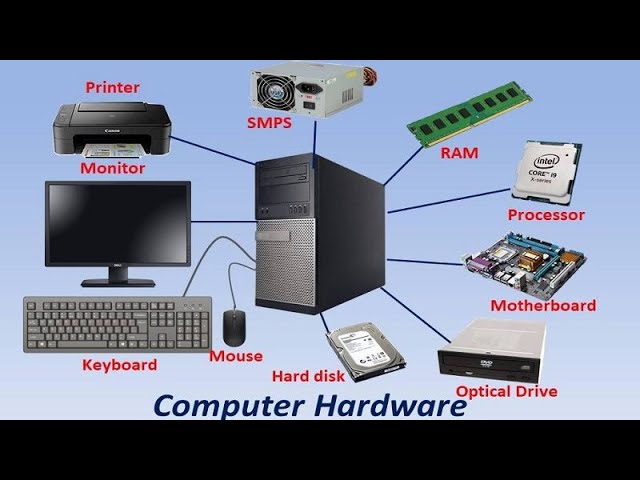
Monitor, Keyboard, Mouse: Every day at work, people use a monitor, keyboard, and mouse to see information, type data, and control how the computer works.
CPU or Laptop Components: Knowing the basic parts of a computer’s internals, like the CPU or laptop parts, helps users understand how it works and runs programs quickly.
Printer and Scanner Usage: Printers make hard copies of documents, and scanners turn physical documents into digital files. Here’s how to use a printer and scanner.
External Storage Devices:You can safely store, back up, and move data between computers on external storage devices like USB drives and external hard drives.
Basic Awareness Benefit: You don’t have to fix hardware, but knowing how devices work can help you avoid downtime and be more productive.
File and Folder Management Skills
File management is one of the most important computer skills for office work.
Creating and Organizing Files
Office work involves handling many documents daily. Employees should know how to:
- Being able to organize files and folders correctly is one of the most important computer skills for office work. You can save time, make fewer mistakes, and get more done by putting files in the right order. Follow these easy steps to keep your folders and files in order.
1. Create a folder for each project
Making separate folders for each project makes it easier to find and organize files.
- Right-click on an empty space on the desktop or in a drive.
- From the New menu, choose Folder.
- Type a name for the project and press Enter.
- Make folders for each task or project by doing the same thing again.
Use clear folder names that are related to work, like Client Documents, Project Files, or Office Reports.
2. Name files correctly
If you name your files correctly, it will be easier to find them without opening them.
- To change the name of a file, right-click on it.
- From the list, pick “Rename.”
- Name the file something that makes sense and is clear.
- Press Enter to save the new name.
(Best Practice: Don’t use names like Document1 or File123 by default.)
3. Place Files in the Right Places
Putting files in the right folder now will save you time and trouble later.
- Go to File and then Save As in the program you’re using.
- Choose the right folder for the job.
(Make sure the file name and format are correct.)
- Click Save to save the file correctly.
📌 Always check where the folder is before saving important files.
4. Name your files something that makes sense
It’s easier to find files with meaningful names, and they help things run more smoothly.
- Include details like the name, date, or version number of the project.
- Use words that are simple to read and understand.
- Don’t use characters like /, \, *, ?, or :.
- Keep file names short, but make sure they say what they are.
Example: Office_Report_March_2025.docx
Why you should keep track of your files and folders
You don’t have to be a tech expert to manage files, but knowing a little bit about them can help you keep your data safe, get your work done faster, and not have to take time off. Organized files help the office run more smoothly and make every day go more smoothly.
Microsoft Word Skills for Office Work
Microsoft Word (or Google Docs) is essential for office documentation.
Creating Professional Documents
Office workers commonly use Word for:
Microsoft Word (or Google Docs) is one of the most important tools used in offices for creating and managing documents. Office workers use it daily to prepare professional and organized written materials.
Writing letters and applications:
Microsoft Word is commonly used to write official letters, job applications, and request letters. Users can choose proper fonts, align text, and format paragraphs to create a clean and professional layout.
Preparing reports:
Office reports such as project reports, sales reports, and academic reports are created using Word. Features like headings, bullet points, tables, and page numbers help present information clearly and systematically.
Creating meeting notes:
Word is useful for writing meeting agendas and recording meeting minutes. Users can structure points, highlight important decisions, and save documents for future reference.
Drafting official documents:
Many official documents such as notices, policies, agreements, and internal memos are prepared in Microsoft Word. Proper formatting ensures these documents look formal and are easy to read.
Formatting text professionally:
Knowing how to format text—such as changing font size, style, spacing, and alignment—makes documents look neat and professional. Well-formatted documents create a good impression in office environments.
Essential Word Skills
Key skills include:

To create professional and well-organized documents, office workers must understand the basic features of Microsoft Word or Google Docs. These essential skills help improve document appearance and readability.
- Font formatting (bold, size, alignment):
Font formatting allows users to change the style of text. Using bold highlights important words, adjusting font size improves readability, and text alignment (left, center, right, or justified) helps present content neatly.
How to use:
- Open Microsoft Word or Google Docs.
- Select the text you want to format using the mouse.
- Click B to make text bold.
- Choose a font size from the font size dropdown.
- Use alignment buttons to align text:
- Left align
- Center align
- Right align
- Justify text
–Tip: Use bold for headings and normal text for content.
- Left align
- Paragraph spacing:
Proper paragraph spacing makes documents easier to read. Adjusting line spacing and space before or after paragraphs prevents text from looking crowded and improves overall layout.
How to use:
- Select the paragraph.
- Go to the Line and Paragraph Spacing icon.
- Choose spacing like 1.15, 1.5, or 2.0.
- To add space between paragraphs, select Add space before/after paragraph.
Tip: Proper spacing makes documents easy to read.
- Using bullet points and numbering:
Bullet points and numbered lists help organize information clearly. They are useful for instructions, lists, and key points, making documents easier to understand at a glance.
How to use:
- Place the cursor where you want the list.
- Click the Bullets or Numbering icon.
- Type your first point and press Enter.
- Continue typing the next points.
- Press Enter twice to stop the list.
Tip: Use bullets for general points and numbering for steps.
- Page setup and margins:
Page setup options allow users to adjust margins, page size, and orientation. Correct margin settings ensure the document looks professional and prints correctly.
How to use:
- Click on the Layout or File > Page Setup menu.
- Select Margins.
- Choose a preset margin (Normal, Narrow, Wide).
- Change page orientation if needed:
- Portrait
- Landscape
- Portrait
Tip: Standard margins are best for office documents.
- Header and footer usage:
Headers and footers are used to add information such as page numbers, document titles, dates, or company names. They help maintain consistency across multiple pages.
How to use:
- Click Insert from the top menu.
- Select Header or Footer.
- Type text like document title or company name.
- To add page numbers:
- Click Insert > Page Number
- Click Insert > Page Number
- Click outside the header/footer to return to the document.
- Tip: Headers and footers help keep documents organized and professional.
Microsoft Excel Skills for Office Work
Excel is used for data management and calculations in almost every office.
Basic Excel Functions
Microsoft Excel is an important tool for managing and analyzing office data. Even basic Excel knowledge helps employees work faster and more accurately.
- Rows and columns:
Excel worksheets are organized into rows (horizontal) and columns (vertical). They help arrange data in a structured and easy-to-read format.
Step 1: Open Microsoft Excel (or Google Sheets).
Step 2: Notice that the vertical sections are called columns (labeled A, B, C…) and horizontal sections are called rows (labeled 1, 2, 3…).
Step 3: Click any cell (the intersection of a row and column) to enter data.
- Cells and worksheets:
A cell is the box where a row and a column meet, and it is used to enter data. Multiple worksheets together make up an Excel file (workbook). - Step 1: Each cell can hold numbers, text, or formulas.
Step 2: To enter data, select a cell and type the content, then press Enter.
Step 3: To move to another cell, use arrow keys or click the cell with your mouse.
Step 4: Worksheets are multiple pages within one Excel file. Click the sheet tabs at the bottom to switch or add new worksheets. - Basic formulas (SUM, AVERAGE):
Excel formulas are used to calculate data automatically. Functions like SUM add values, while AVERAGE calculates the mean of selected numbers. - Step 1: Click the cell where you want the result to appear.
Step 2: Type = to start a formula.
Step 3: For SUM, type =SUM(A1:A5) to add numbers from cell A1 to A5.
Step 4: For AVERAGE, type =AVERAGE(B1:B5) to find the average of numbers from B1 to B5.
Step 5: Press Enter to see the result. - Sorting and filtering data:
Sorting arranges data in a specific order, such as A–Z or highest to lowest. Filtering helps display only selected or relevant data.
Step 1: Select the data range you want to sort (including headers).
Step 2: Go to the Data tab.
Step 3: Click Sort A to Z for ascending or Sort Z to A for descending order.
Filtering data
- Step 1: Select the header row of your data.
- Step 2: Go to the Data tab and click Filter.
- Step 3: Small drop-down arrows will appear on each header.
- Step 4: Click an arrow and choose which data to display, hiding the rest temporarily.
visual table format
| Function | What It Does | Step-by-Step How to Use | Example |
| Rows & Columns | Organize data horizontally (rows) and vertically (columns) | 1. Open Excel/Google Sheets2. Observe columns labeled A, B, C… and rows labeled 1, 2, 3…3. Click any cell to enter data | Click cell A1 and type Name |
| Cells & Worksheets | Cells hold data; worksheets are pages in a workbook | 1. Click a cell to type numbers or text2. Press Enter to confirm3. Use arrow keys or mouse to move4. Add new worksheet using + at bottom | Enter 100 in B2 |
| SUM Formula | Adds numbers in selected cells | 1. Click the cell for result2. Type =SUM(3. Select range (e.g., A1:A5)4. Type ) and press Enter | =SUM(A1:A5) → Result: 500 |
| AVERAGE Formula | Calculates the average of numbers | 1. Click the result cell2. Type =AVERAGE(3. Select range (e.g., B1:B5)4. Type ) and press Enter | =AVERAGE(B1:B5) → Result: 50 |
| Sorting Data | Arrange data in ascending/descending order | 1. Select data range including headers2. Go to Data tab3. Click Sort A-Z or Sort Z-A | Sort list of names A-Z |
| Filtering Data | Show only data that meets criteria | 1. Select header row2. Go to Data tab → Click Filter3. Click drop-down arrow on header4. Select which data to display | Show only rows where Department = Sales |
Practical Office Use of Excel – Step by Step Guide
People in offices use Excel a lot to organize, count, and look at data quickly and easily. Here are some useful examples and step-by-step instructions for people who are new to this.
1. Sheets for attendance
How to make
- Launch Excel and make a new sheet.
- Put the words “Date,” “Employee Name,” and “Present/Absent” at the top of each column.
- Enter the information for each employee and date.
- Use the drop-down lists to say if you are “Present” or “Absent”:
- Click on the cells → Go to the Data tab and then to Data Validation. Pick List → Present or absent.
- To find out how many people came, use the COUNTIF formula:
=COUNTIF(C2:C31,”Present”) counts the total number of days that are present.
2. How to Figure Out Salaries
Purpose: Automatically figure out salaries based on how many hours were worked or set amounts.
How to make:
- Put labels on the columns that say “Employee Name,” “Basic Salary,” “Bonus,” and “Total Salary.”
- Type in the amounts of the salary and bonus.
- To find totals, use these formulas:For example, =B2+C2 adds the Basic Salary (B2) and the Bonus (C2).
Use AutoFill to apply the formula to all of the workers.
3. Keeping track of office costs
Purpose: Keep track of office budgets and expenses.
How to make:
- Put the following labels on the columns: Date, Expense Type, Amount, and Paid By.
- Put in all of your expense records.
- To find out how much you spent in total, use the SUM formula:For example, =SUM(C2:C20) gives you the total costs for rows 2 through 20.
- Use sorting and filtering to see only certain types of expenses or dates.
4. Records of Inventory
Purpose: Keep track of stock and manage inventory well.
How to make:
- Put the following labels on the columns: Item Name, Quantity, Price per Unit, and Total Value.
- Fill in the details about the item.
- To do calculations, use formulas:
- Total Value: =B2*C2, which means Quantity times Price per Unit.
- Use Conditional Formatting to make low stock stand out:
- Choose the quantity column → Home tab > Conditional Formatting > Highlight Cells Rules → Less Than → Type in the number that is the threshold.
Why You Should Use Excel at Work
- Makes calculations more accurate.
- Formulas and automation help you save time.
- Makes data easy to read and understand.
- Increases your productivity and value as a professional.
Email Communication Skills
Professional email communication is a core office skill.
Writing Professional Emails
Office emails should be:
In the office, email is one of the most important ways to talk to people professionally. Writing good emails makes sure that your message gets across and shows that you are a professional.
Different Kinds of Professional Emails
1>Polite and clear
Don’t use words that could mean more than one thing.
Always say hello to the person you’re sending the email to (for example, “Dear Mr. Sharma”) and goodbye (for example, “Best regards”).
Asking for information or clarification in a polite way is an example.
2>Well-Organized
Put your email into three parts: the introduction, the main content, and the conclusion.
To make the message easy to read, use short paragraphs and bullet points if you need to.
3>No Spelling Errors
Check your email for mistakes before you send it.
To avoid mistakes, use the spell-check tools that come with email programs.
4>Brief and Professional
Make sure your emails are short and to the point.
Don’t use too many words or long sentences.
Keep a professional tone while focusing on the email’s purpose.
How to Write Emails That Work
- Use a clear subject line that tells what the email is about.
- Don’t use slang or casual language.
- To stay professional, answer important emails right away.
- Use standard font sizes and professional fonts like Arial or Calibri.
Essential Keyboard Shortcuts for Office Work
Using keyboard shortcuts can save time, increase productivity, and make working with documents, spreadsheets, and files much easier. Here’s a list of the most important shortcuts for beginners:
| Shortcut | Action | How to Use / Example |
| Ctrl + C | Copy | Select text, cells, or files → Press Ctrl + C → The content is copied to clipboard. |
| Ctrl + V | Paste | Move to destination → Press Ctrl + V → The copied content is pasted. |
| Ctrl + X | Cut | Select text or files → Press Ctrl + X → The content is cut and can be pasted elsewhere. |
| Ctrl + S | Save | Press Ctrl + S while working → Saves the current document immediately. |
| Ctrl + Z | Undo | Press Ctrl + Z → Reverses your last action or mistake. |
| Ctrl + Y | Redo | Press Ctrl + Y → Re-applies an action you just undid. |
| Ctrl + A | Select All | Press Ctrl + A → Selects all text in a document or all cells in a sheet. |
| Ctrl + P | Press Ctrl + P → Opens the print dialog for the current document or page. | |
| Alt + Tab | Switch between programs | Hold Alt and press Tab → Quickly switch between open applications. |
| Ctrl + F | Find | Press Ctrl + F → Opens the search box to find words or data in the document. |
| Ctrl + Home | Go to beginning | Press Ctrl + Home → Moves the cursor to the beginning of the document. |
| Ctrl + End | Go to end | Press Ctrl + End → Moves the cursor to the end of the document. |
| Ctrl + B | Bold | Select text → Press Ctrl + B → Makes the text bold. |
| Ctrl + I | Italic | Select text → Press Ctrl + I → Makes the text italic. |
| Ctrl + U | Underline | Select text → Press Ctrl + U → Underlines the text. |
Tips for Beginners
- Practice using 3–5 shortcuts daily to gradually improve speed.
- Most shortcuts work in Microsoft Word, Excel, Google Docs, and even Windows file management.
- Combining shortcuts (like Ctrl + C → Ctrl + V) can significantly reduce mouse usage.
Internet and Browsing Skills for Office Work
The internet is an essential office tool.
Using the Internet Effectively
Skills for using the internet and looking for work in an office
One of the most important tools for running a business today is the internet. If you know how to use the internet safely and well, you can save time, get more done, and keep your data safe.
How to Use the Internet Well
- Find Information with Google
Use specific keywords instead of long sentences to get results faster.
To find exact matches, use search operators like ” ” or site: to search within a specific website.
“Annual report 2025 site:companywebsite.com” is an example of a search that finds a specific report on the company’s official website.
- Go to the official websites
Always check the URL of a website twice to make sure you don’t end up on a phishing site.
Add the official sites you use most often to your bookmarks so you can get to them faster.
Check that the URL has HTTPS in it to make sure the connection is safe.
- How to Download Files Safely
Don’t download files from places you don’t know you can trust.
Do not click on links or pop-ups that you are not sure about.
Scan the files you download with antivirus software before you open them.
- Upload documents when you need to.
Use the secure portals that your company gives you.
Check that the file size and format are correct before you upload it.
Don’t share private files over public Wi-Fi or other networks that aren’t safe.
How to Browse Safely at Work ➕
- Check that each account has a strong and unique password.
- Enable two-factor authentication for your email and cloud accounts.
- Don’t share personal or business information on websites you don’t trust.
- Always keep your system and browser up to date to keep them safe.
- Be careful of emails and links that look like they might be fake.
Office Software and Tools Knowledge
Modern offices use various tools besides MS Office.
Common Office Tools
Some commonly used office tools include:
- Google Docs, Sheets, and Drive
- Zoom or Microsoft Teams
- PDF readers and editors
- Cloud storage platforms
Typing and Keyboard Skills
Fast and accurate typing saves time in office work.
Importance of Typing Skills forBasic Computer Skills for Office Work
Office employees spend hours typing:
- Emails
- Reports
- Data entries
Notes:Improving typing speed increases productivity.
Basic Troubleshooting Skills
Office workers should handle small technical issues.
Common Problems and Solutions
Basic troubleshooting includes:
- Restarting the system
- Checking cable connections
- Closing unresponsive programs
- Running antivirus scans